

Add Rich Text to WordPress Form with RegistrationMagic
Rich Text allows the display of formatted content in your WordPress form. If you add rich text to WordPress form then you can use HTML tags available in WordPress editor. They offer complex content and users can format them as per their needs.
The Rich Text contents give scope to site builders to format them into bold, italic or underlined styles. Formatting a content is to alter the text size and modification of content features such as visibility and style.
In web development, Rich Text holds an important role. Formatting content in such a way so that it seeks user attention is the main function of Rich Text. In your registration page also, suppose you want your reader to read a certain line with more intent. Then formatting it a little differently from the others helps you.
Rich Texts can hold data on your form that you can format from the backend. Only a WordPress registration plugin that offers custom form fields allow insertion of Rich Texts in a form.
Rich Text comes as a Widget with RegistrationMagic. So, being a widget it has the purpose of displaying form data as a read-only field. Users cannot edit these Rich Texts from the frontend.
Additionally, RegistrationMagic also allows users to add custom user data Fields to create dynamic forms. These fields are not read-only in nature. They contain data fields on the forms where the users can input relevant content.
Tips: The custom fields of RegistrationMagic allow users to add date, gender, nickname, time zone, country, etc. fields. Users can even configure WordPress form number field to take user data in numerical value only.
So, let’s go ahead and add rich text to WordPress with the Rich Text Widget of RegistrationMagic.
Adding Widgets to WordPress Forms
First, install the RegistrationMagic plugin from your WordPress Dashboard. Next, you will find the RegistrationMagic plugin menu. From there click on the All Forms link to land on the All Forms page.

The All Forms page contains all the forms that you create through RegistrationMagic. Here, each form displays its unique shortcode and two useful links called Fields and Dashboard when you hover your cursor over it.

Now, click on the Fields link to land on the form’s Field Manager page. All the fields that you add to a form display serially on the Field Manager page. Also, all fields added to a form from here stay unique to each form.
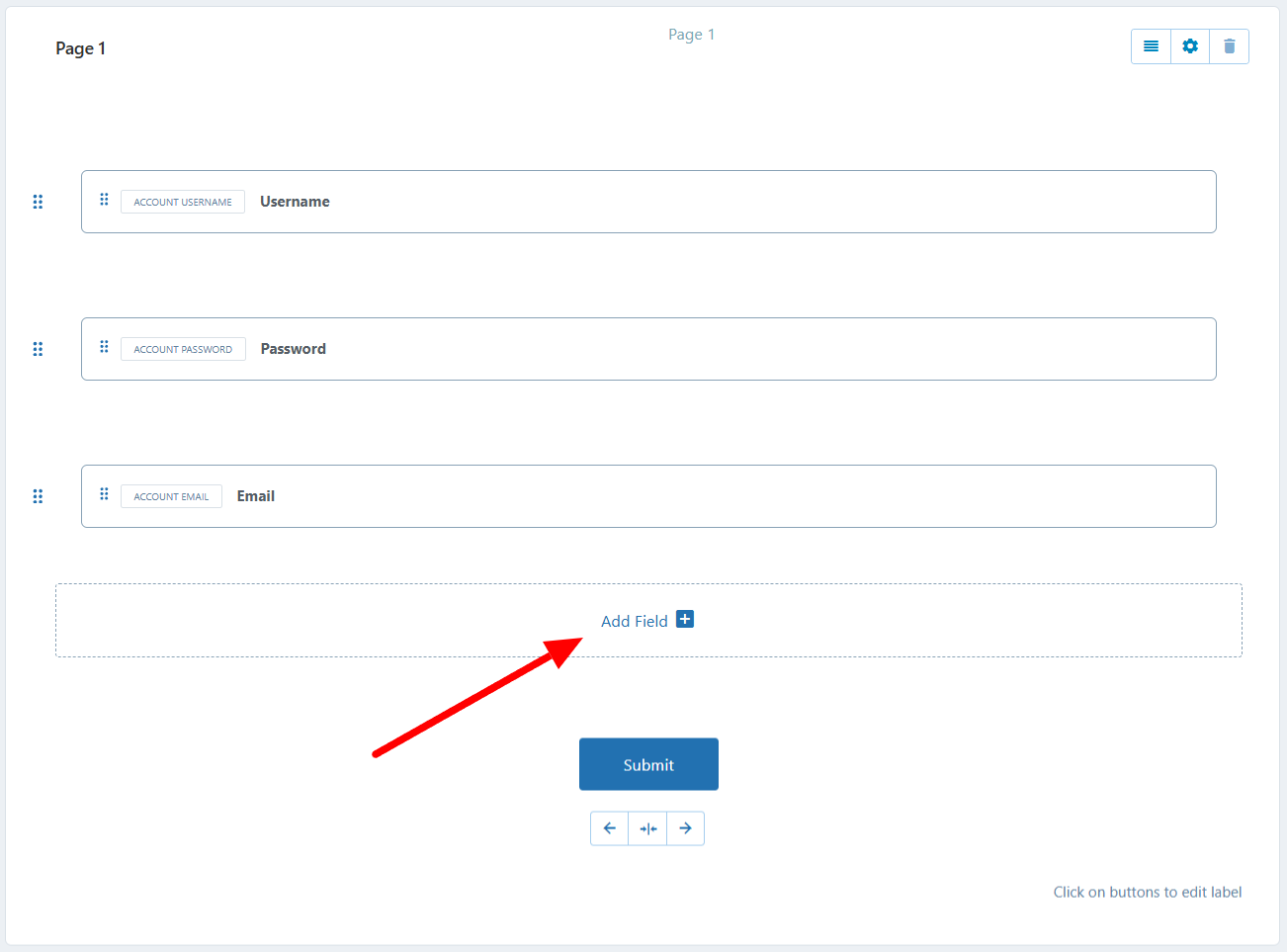
Next, click on the Add Field link at the bottom of the field list. Clicking on it, you will get a pop up displaying all the custom fields and widgets that can be added to a RegistrationMagic form.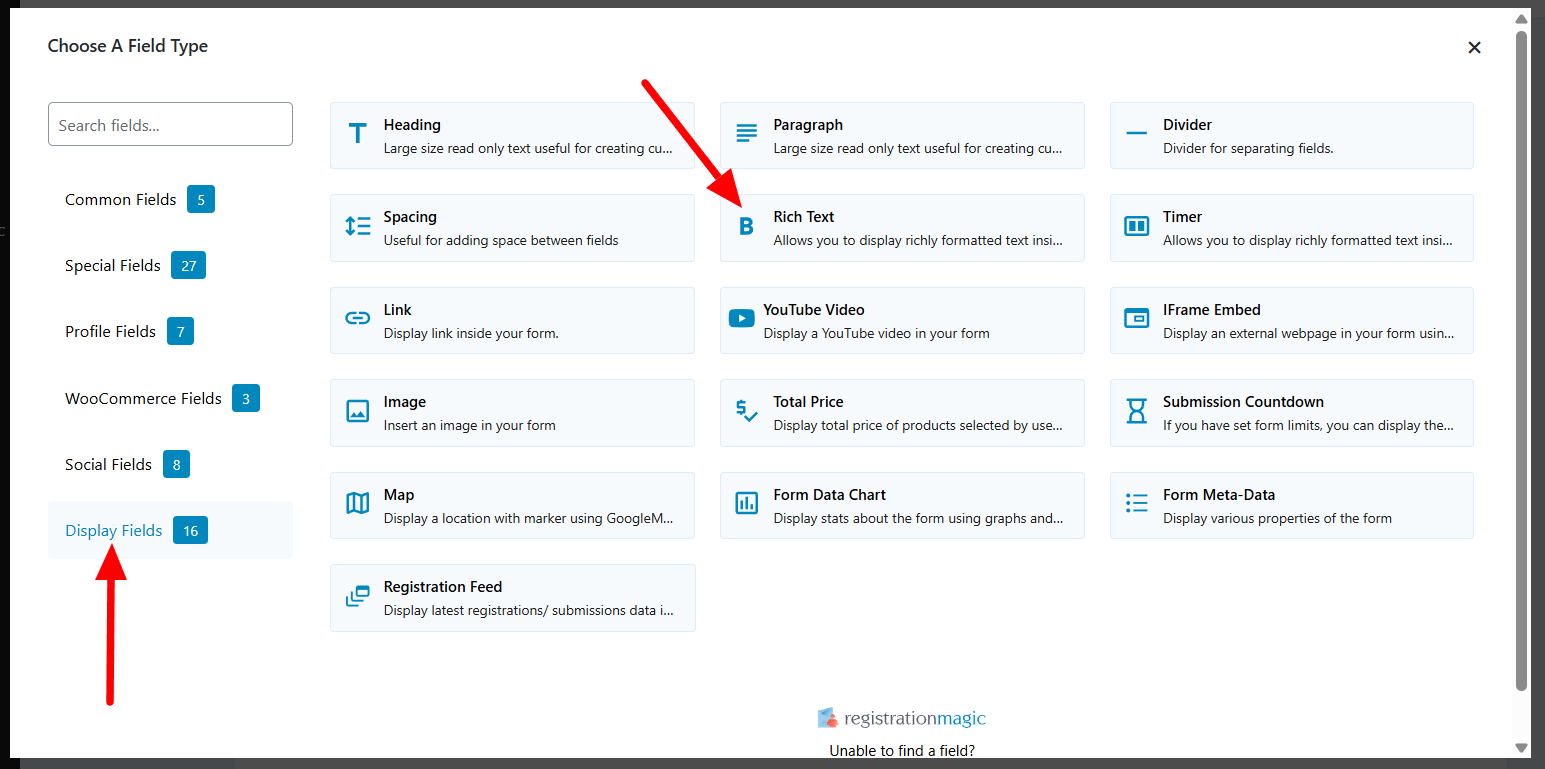
Add Rich Text to WordPress Form
Click on the Rich Text field from the All Fields pop up. Next, you will land on the Rich Text Widget page. This page is the WordPress text editor for your Rich Text widget. 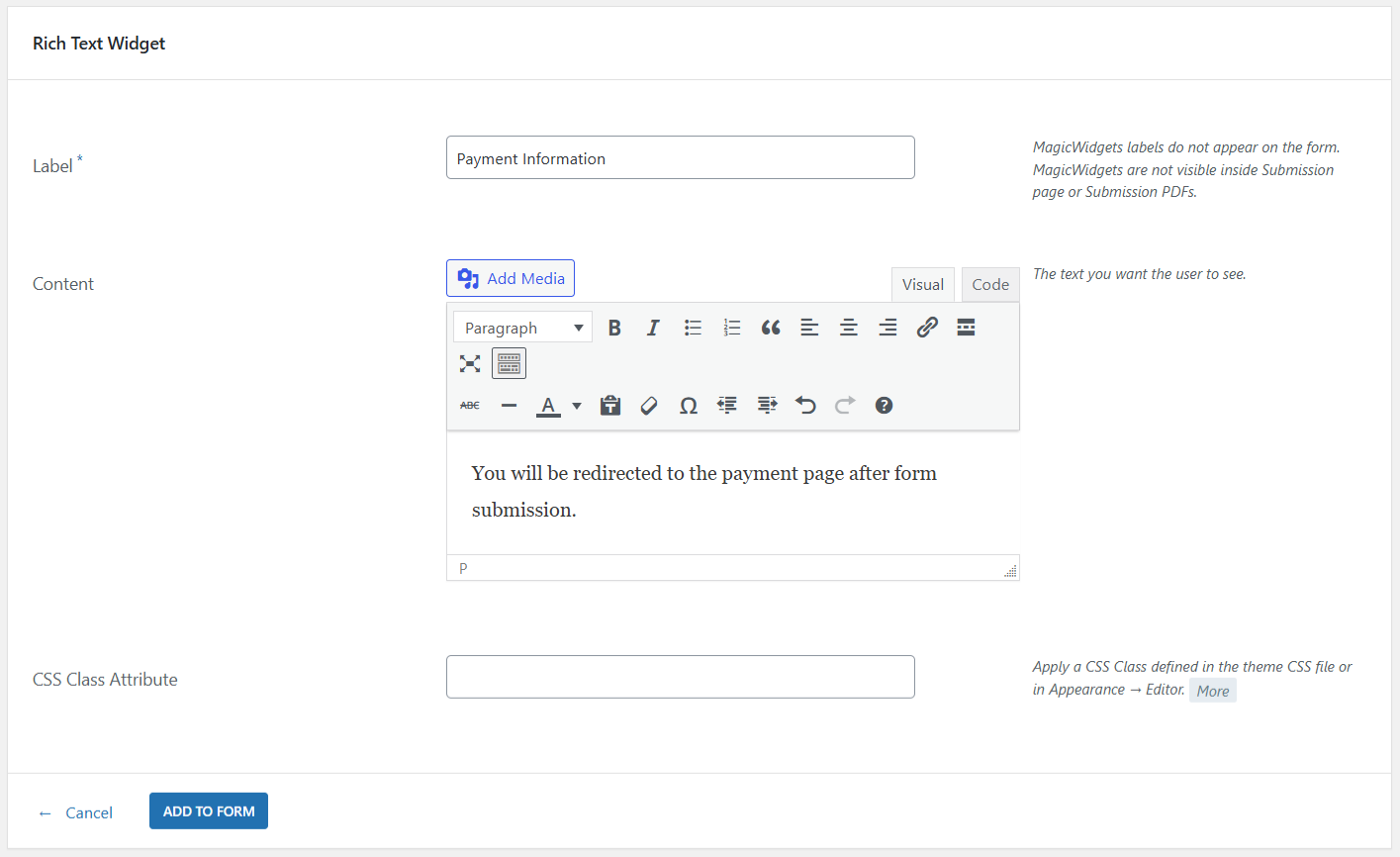
Fill the first field Label section with the text that you want to display on the form. Here, I wrote “Payment Information” since this will be my label of the widget on the frontend.
Move down to the Content field. Here you will be able to write any information or announcement that you want to display on the form. The Rich Text Editor panel at the top of the content box will help you to rev up your statement.
As an example, we will be using the following phrase: “You will be redirected to the payment page after form submission”. This phrase will be visible to the user as a constant text on the form.
You can modify the text, insert paragraphs, add images, change fonts, alignment and even add media to it. You can also, apply HTML code to format the text from here. Then, you can also apply a custom CSS class defined in the Appearance section or the theme CSS file. Lastly, click on Add to Form button to finish your job.
The Rich Text Widget on your Frontend Form
Now, there is just one thing left to view your Rich Text content on your frontend form. Publish the form to appear on your site.
RegistrationMagic makes it very simple to publish forms on the frontend. Earlier I told you that each form has a unique shortcode on the form cover.
Tips: With RegistrationMagic, you can display WordPress form using shortcode in a few simple steps. Paste the unique form shortcode in a new WordPress page and click on publish.
Now, go to the frontend of your site to view the form.

In the above image of the form, you can see the Rich Text field below the form fields. This way, RegistrationMagic offers various means to fix WordPress form design.
You can see the rich text widget in action here.
Usage of the Rich Text Editor Widget
If you are making any announcement or putting a disclaimer on your form then add a Rich Text widget to your form. The Rich Text Editor of RegistrationMagic allows you to format that text so that it appears just the you want to display it. You can even put links in your Rich Text with the WordPress text editor. This will help you to link multiple pages on your site to your form. It is also possible to add a sponsored link through the Rich Text widget to earn revenue from your form.
Additionally, the Rich Text widget is a good means to add an advertisement or an offer content on the form. Since you have the option to put color, change the font size and style of the text you can make it look catchy. Thus attract user attention to your WordPress registration page.
Although the default way to apply a Rich Text to your form is to add it through the WordPress page on which you published your form.
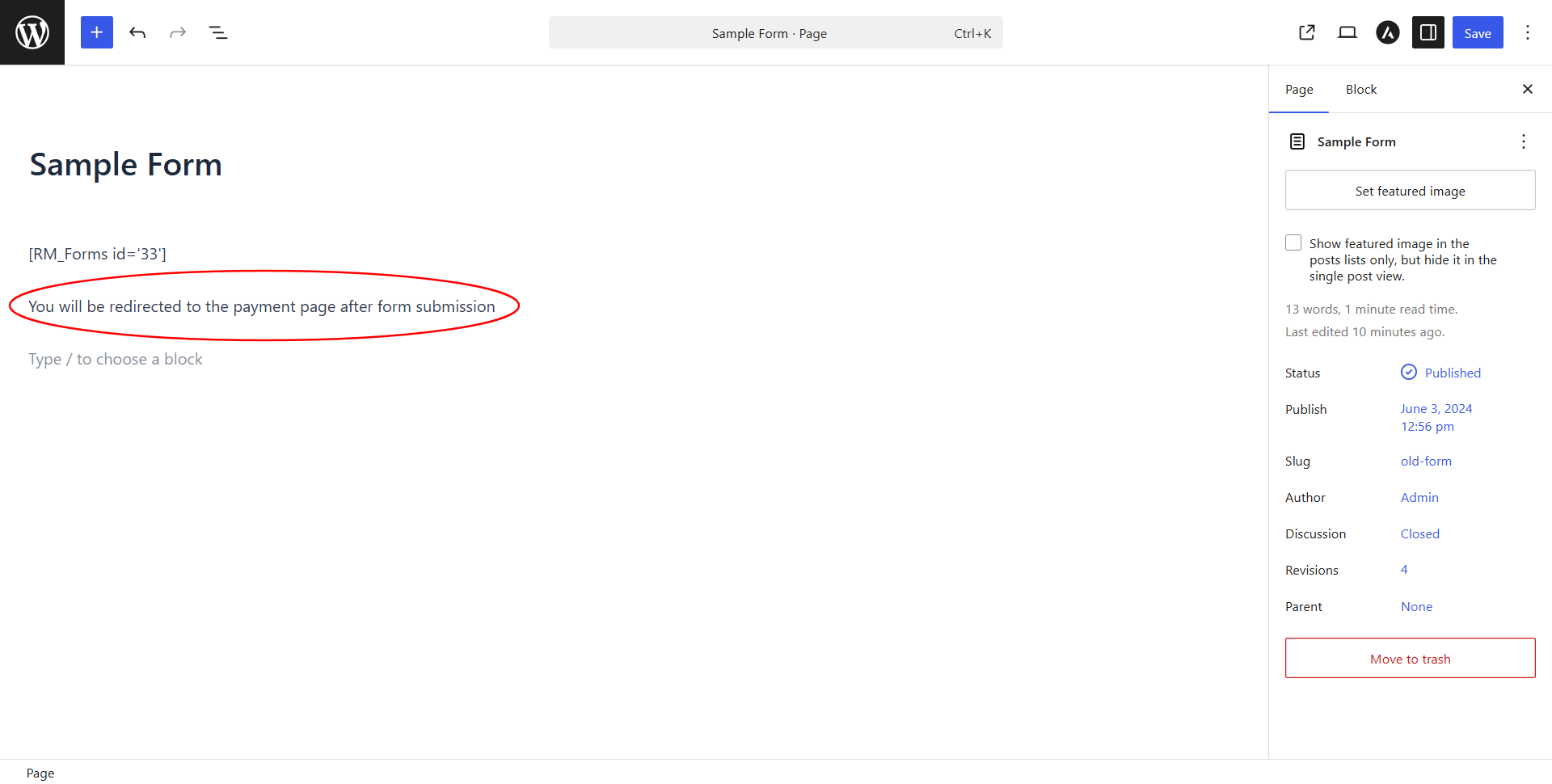
You can see in the above image, there is a rich text applied to the content section after the registration form. There are similar options to format the text, change its style and alignment. Let’s see how the form appears on site.
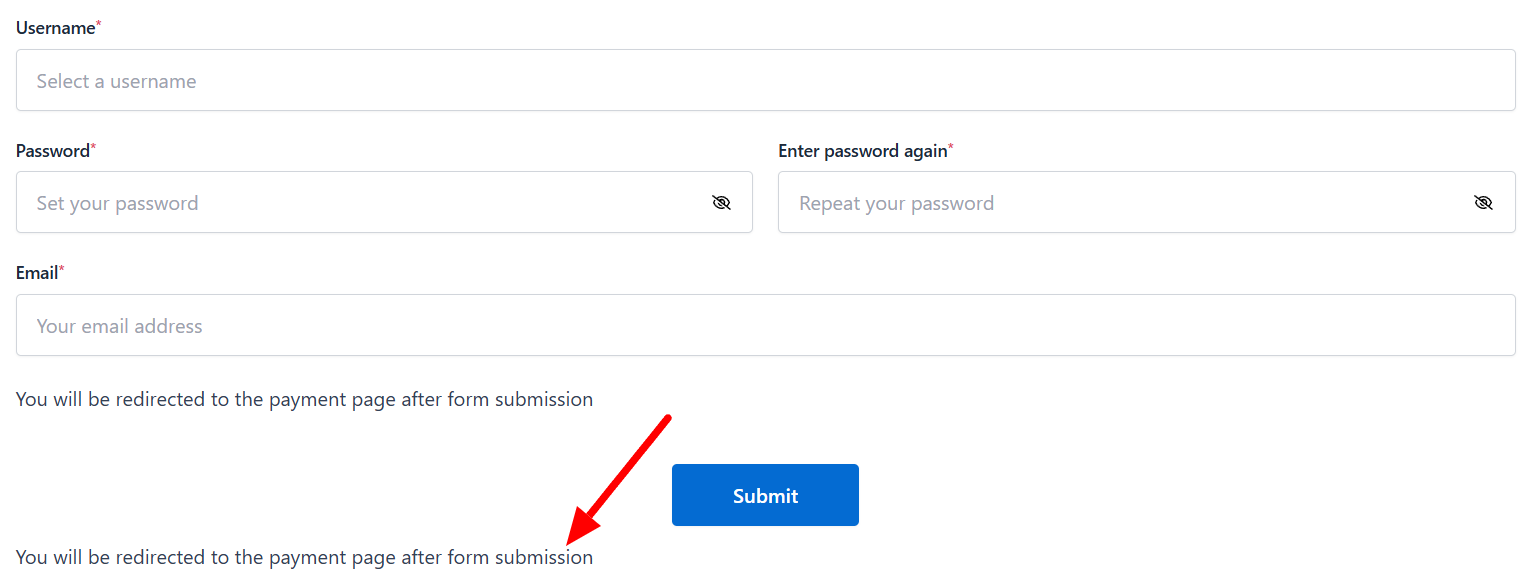
In the above image of the form, you can see the rich text applied through WordPress Page Editor. The alignment and font look fine but the placement of the text is below the Submit button.
Thus, we could not include the text in the form body section using the default page editor and it ends up appearing aloof from the form. So, to gain better user attention on the rich text content it is better to keep it inside the form body. This is only possible through RegistrationMagic. Since the Rich Text widget of this plugin inserts the content within the form, increasing the utility and visibility of the content.

- How to Disable WordPress User Without Deleting Their Account - March 23, 2026
- How to Add Rich Text to WordPress Form - March 23, 2026
- Add CAPTCHA in WordPress Login and Registration Form? - March 23, 2026
- Redirect user to specific page after form submission - March 21, 2026
- How to Send Automated Welcome Emails in WordPress - March 21, 2026
- How to Display Custom Success Message in WordPress Forms - March 21, 2026
- Publish Registration Forms and Display Registered Users - March 19, 2026
- Complete Automation Guide for WordPress Forms - March 19, 2026
- WordPress User Roles, Permissions & Role Editor [Complete Guide] - March 19, 2026
- WordPress User Management Plugin Guide - July 18, 2024
Is there any way to change the font size & font type in the Rich Text editor panel?
Thank you
Hi Kenny,
That option is currently not available. We have noted your requirement and will add it in a future update.
How to write the custom form field and post the information to a DB table when the form is submitted.
Hi Desmond,
You can use a hidden field and set its default value from the field settings. The field value will then be submitted with all form submissions. And the field itself will not be visible to the user when submitting the form.