
WordPress User Roles, User Levels & User Types
WordPress comes with a built-in user role management system that helps control what different users can and cannot do on a website. Common roles (sometimes referred to as WordPress User Levels or WordPress User Types) include Administrator, Editor, Author, Contributor, and Subscriber—each with its own set of permissions (capabilities). This structure is essential for maintaining site security and ensuring that users only have access to features relevant to their responsibilities. For example, while an Administrator has full control over the website, a Subscriber can typically only manage their own profile.
RegistrationMagic extends this functionality by allowing site owners to automatically assign any existing user role to individuals when they submit a registration form. This means you can create multiple registration forms for different user types—such as customers, members, or vendors—and map each form to a specific role. Additionally, RegistrationMagic enables the creation of custom user roles tailored to your website’s unique needs.
Let us discuss each WordPress user role briefly first.
The Administrator Role
This role designates the user as an admin. Once you are assigned as an administrator, you can control any feature within the WordPress dashboard.
One can edit core files, modify themes and alter the WordPress user roles of others.
The Editor Role
With editor role, you can access any content. However, you will be restricted from making changes to themes and plugins.
An editor will immediately start managing and publishing blog and pages. Link management is also possible besides moderating comments.
Editors can thus manage every speck of a content but cannot alter the settings outside of content.
The Author Role
Authors can only edit their own posts; they cannot supervise others’ posts. Author has the permission to add content to the media library.
The role rights allow Authors to delete obsolete content. However, they cannot delete or create pages.
The Contributor Role
The contributor will enjoy complete access to modifying, deleting and editing their draft posts. However, contributor cannot publish the post.
Access to the media library is also under restriction. Thus, the contributor needs to get admin authorization to access images, videos, and other media files.
Guest authors can relish this role if they don’t post on a regular basis.
The Subscriber Role
Subscribers can read the post and comment on the post. They can also create a profile through WordPress dashboard.
Configuring WordPress User Roles through RegistrationMagic’s User Role Editor
From your WP dashboard, click on the RegistrationMagic plugin menu. The first tab underlying this plugin is the “All Forms” tab, navigate to your desired form’s dashboard by clicking on its Dashboard link.

You will be redirected to a page where you can build, configure and integrate your form. Under the Configure section, look for Accounts settings.

From the Accounts settings page, you can set the default WordPress user role for the form. Explore the option to Assign WordPress User Roles. Click the drop-down and you will be able to see all available roles that can be assigned. By default, the Subscriber role is selected.
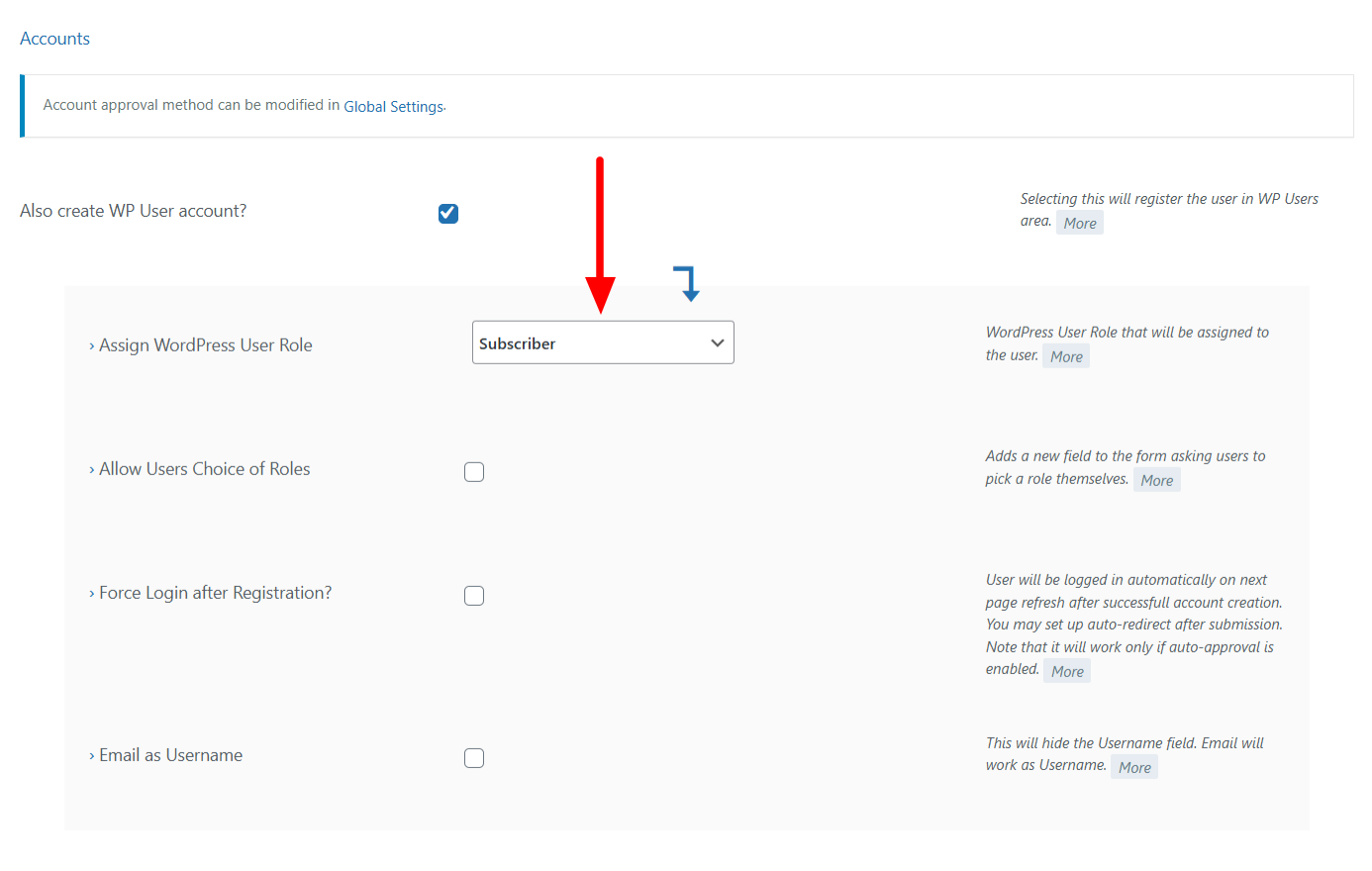
Choose any of the available roles and click on the Save button.
Alternatively, you can enable the option “Allow Users Choice of Roles”. This setting allows users to select their role themselves manually when filling out the form.
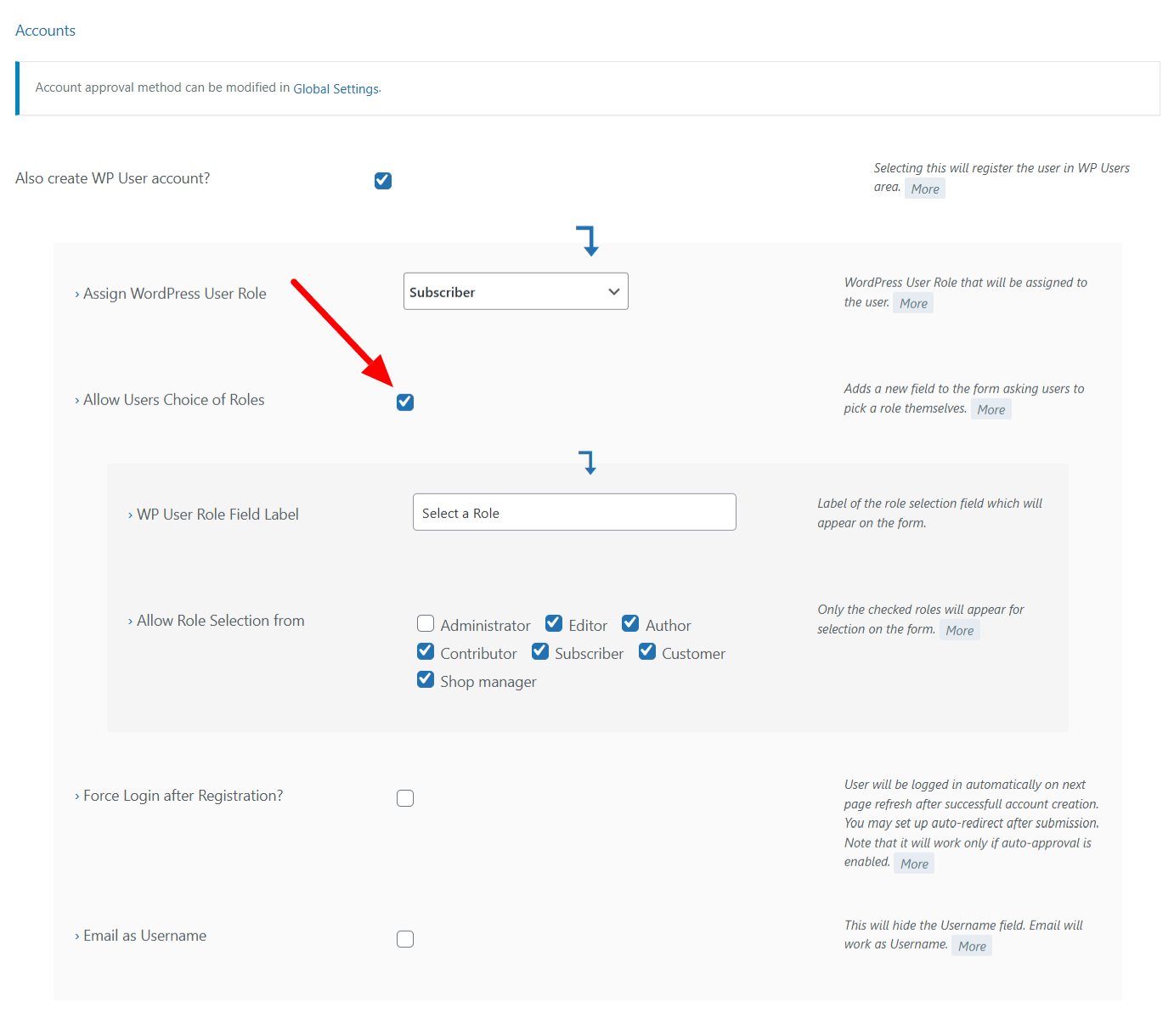
The next option is “Force login after Registration”. This forces the user to log-in once user account is created with the form submission. The last option is “Email as Username”. Enabling this hides the username field on the form and the Email will be used as the Username instead.
Once you are done making your changes to the options, click on the Save button. You have now set up the user role for users registering on your site.
Incorporating more WordPress User Roles
From your WP Dashboard, navigate to RegistrationMagic → User Roles. From this page, you can create brand-new WordPress user roles. However, the role can only inherit permissions from one of the 5 pre-defined ones.
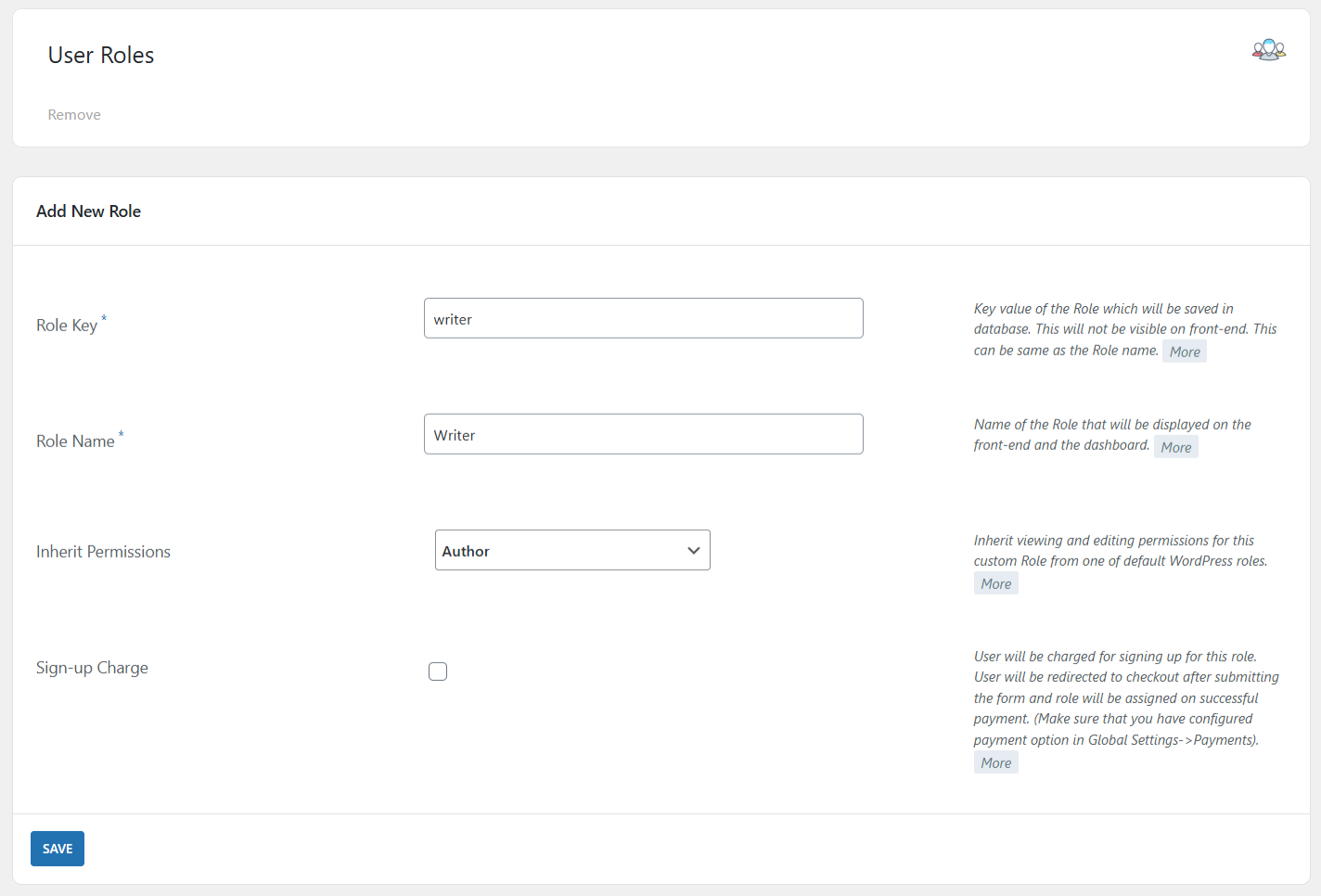
In this case, we have assigned Role Key as “writer” and Role Name as “Writer”. The role key is the value of the role which will be stored in the database. This key will be invisible to the user. The role name, however, is displayed on the front end.
The next drop-down lets you select which pre-defined role you want to inherit permissions from. We have selected the “Author” role here. Next, you have the option to setup a “Sign-up charge” for this role. If enabled, users will be redirected to the payment page after form submission for assignment of this role. Finally, click on the Save button to save your changes.
Now, go back to the “All Forms” page and copy the shortcode for your form. Paste the shortcode into the content of a page and save the changes. This will publish the form on that page for user to fill in.
WordPress User Roles are now configured in your WordPress User Registration form. See the screenshot below for how the embedded User Roles will display on your registration form.
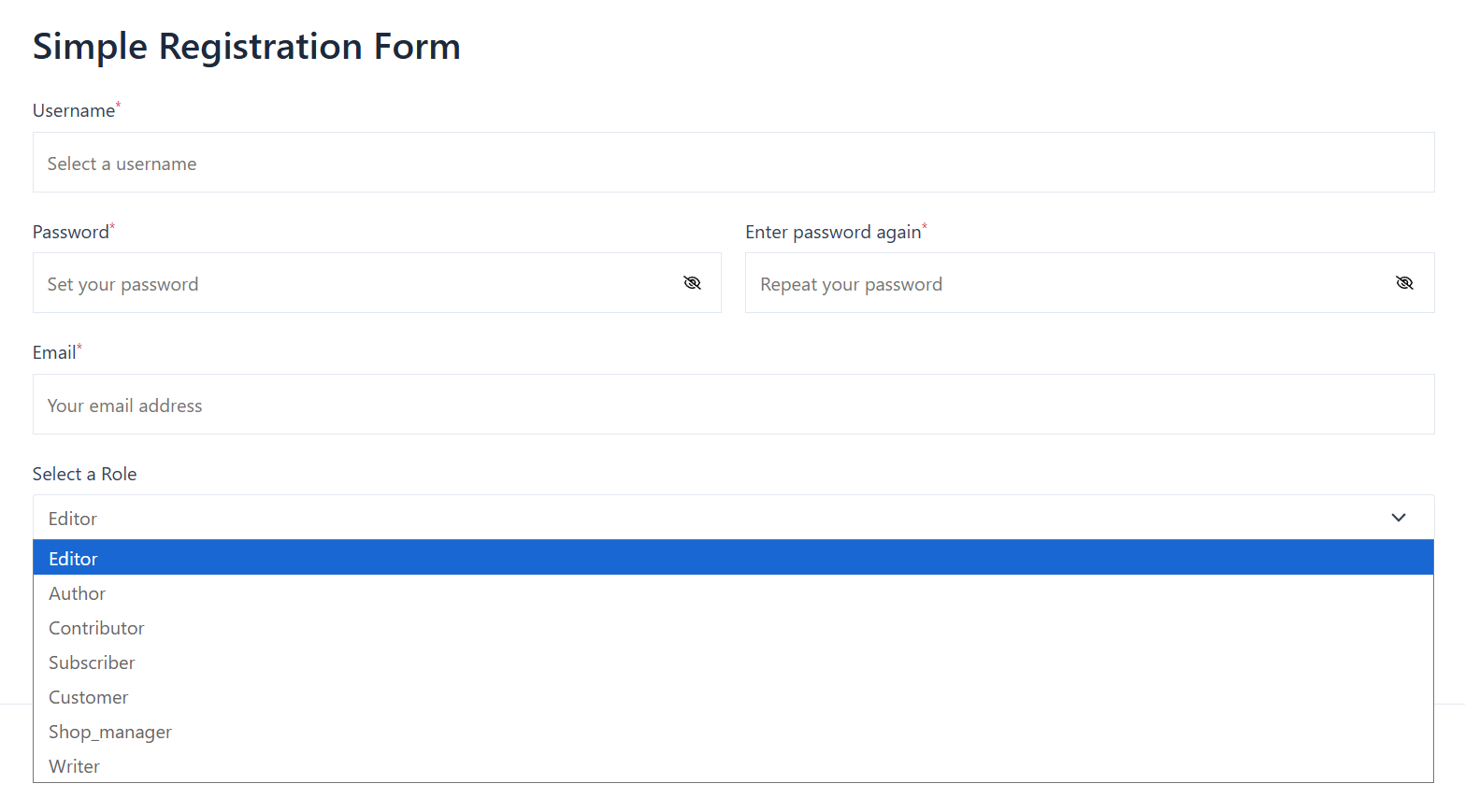
This completes our guide on User roles, User permissions, and the RegistrationMagic User Role Editor.
If you need a head-start to create your user registration process, visit our detailed WordPress Registration page guide.

- How to Disable WordPress User Without Deleting Their Account - March 23, 2026
- How to Add Rich Text to WordPress Form - March 23, 2026
- Add CAPTCHA in WordPress Login and Registration Form? - March 23, 2026
- Redirect user to specific page after form submission - March 21, 2026
- How to Send Automated Welcome Emails in WordPress - March 21, 2026
- How to Display Custom Success Message in WordPress Forms - March 21, 2026
- Publish Registration Forms and Display Registered Users - March 19, 2026
- Complete Automation Guide for WordPress Forms - March 19, 2026
- WordPress User Roles, Permissions & Role Editor [Complete Guide] - March 19, 2026
- WordPress User Management Plugin Guide - July 18, 2024
hello!!
I want to create a form where dealers, resellers, and distributors fill out the form wanting to associate with this company. We want to accept the form manually, and after that redirect them to the registration form so they can create their account. Will this plugin help me with that?
The dealers, resellers and distributors can fill out a contact form and the admin may then manually email the link to the registration form to allow account creation.
I am creating a site that involves musicians and Venues, once the musician has registered I am wanting them to be able to view ALL venues that have registered and the same with a venue that registers I want them to be able to view all registered musicians. is this possible with this particular plugin?
This is indeed possible- you may display all users (musicians in this case) on site’s front end. Feel free to write to us if you need particular details about setting up the workflow.